
DYMO – Think Again


Are you well organized? Do you have a garage full of well-labeled bins or a pantry full of neatly labeled jars? Do you ship a lot of stuff and print labels?
If so, you probably own and cherish your label maker. What’s not to like? Well, if you’re a Dymo label maker owner, there’s a new scam that might convince you to switch brands – if it doesn’t scare you off labels altogether, that is.
For a certain kind of corporate executive, the printer business is a source of endless temptation. After all, printers go through lots of “consumables.” That means that printer manufacturers don’t just get to sell you a printer, they also have a chance to sell you ink, forever. There’s nothing wrong with this business. In theory. In practice, though, printer companies are greedy. They’re not content to be one of many companies offering ink in a competitive market. Rather, they want to be your only ink supplier, and boy oh boy do they want to charge you a lot of money for it – up to $4,000 per litre! No one would voluntarily pay $4,000/litre for ink that costs about $50/litre to manufacture, so the printer companies roll out an endlessly inventive bag of dirty tricks to force you to buy their $4,000/litre product, and keep you buying it, forever.
Now, printers have two consumables, ink and paper, but all the manufacturers’ effort is focused on the ink side. That’s because ink comes in cartridges, and printer companies can add cheap chips to their cartridges; the printer can send these chips to cryptographic challenges that require secret keys held only by the manufacturer. Other manufacturers don’t have the keys, so they can’t make a cartridge that the printer will recognize and accept. This strategy is lucrative but it has its limits: it falls to pieces the minute there’s a supply chain problem that means printer manufacturers can’t get chips anymore! The pandemic was hard on a lot of companies, but it was a boom-time for the delivery industry and the firms that supply it. The desktop label maker sector thrived during the lockdown, as hundreds of millions of people switched from shopping in person to buying things online – things that were delivered in boxes bearing barcode labels printed on a desktop label-printer. Label printers are thermal printers, which means that they don’t use ink: instead, the “print-head” consists of tiny electrical elements that heat up special, thermoreactive paper that turns black when it is heated. Lacking ink, the label-printing market has been spared the kinds of shenanigans that plague the world of inkjets…until now.
Dymo is a household name: founded in 1958 with a breakthrough gadget that embossed capital letters onto rows of adhesive-backed tape, the company is now a division of Newell Brands, a giant, many-headed corporate hydra whose other companies include Rubbermaid, Mr. Coffee, Oster, Crock-Pot, Yankee Candle, Coleman, Elmer’s, Liquid Paper, Parker, Paper Mate, Sharpie, Waterman, X-Acto and many, many more. For all that Dymo is part of this corporate empire, it has not heretofore been able to avail itself of the tricks that created approx $4,000/litre printer ink.
That’s because the only consumable that Dymo owners need is labels, and labels are a standardized product, with many, many vendors producing them and selling them for use with many, many different brands of label maker. Some people might be willing to pay a little extra for Dymo’s own label-rolls, but if not, there are plenty of other options: not just cheaper labels, but labels designed for other uses, with different adhesives and finishes. Those people are going to be disappointed.
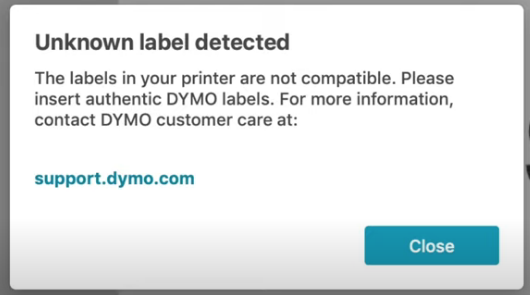
Dymo’s latest generation of desktop label printers use RFID chips to authenticate the labels that Dymo’s customers put in their printers. This lets Dymo’s products distinguish between Dymo’s official labels and third-party consumables. That way, the printers can force their owners to conduct themselves in the ways that serve the interests of Dymo’s corporate owners – even when that is to the owners’ own detriment. There is no (good) reason for this. In its sales literature, Dymo extols the virtues of chipping its label-rolls: auto-sensing of label types and auto-counting of remaining labels – and they boast that “[t]he direct thermal printer replaces the need to buy costly ink or toner.” But what they don’t say is that this printer forces you to buy Dymo’s own labels, which are substantially more expensive than many of its competitors’ labels (Dymo’s labels retail for about $35-$100 per roll; alternatives, about $10-$20 per roll). The reason they don’t say this is obvious: no one wants this. If a Dymo owner wants to buy Dymo labels, they will buy them. The only reason to add this anti-feature is to force Dymo owners who don’t want to buy Dymo labels to buy them anyway.
All the advanced features that Dymo touts for its RFID-locked labels could be attained without the lock-in. For years, Dymo owners have assumed that they can use any labels with their printers. While some third party retailers have added warnings about this label lock-in, the biggest retailers haven’t followed suit – instead, their customers are warning each other about the bait-and-switch.
From the online reaction, it’s clear that Dymo’s customers are pissed.
Some are congregating in technical discussions of how the measure might be defeated, but so far, no vendor has stepped in to offer a jailbreaking tool to let you modify your label maker to serve your interests, not Dymo’s shareholders. There’s a good reason for that: U.S. Copyright law gives Dymo a powerful tool to intimidate commercial rivals who help us escape from label-jail. Section 1201 of the Digital Millennium Copyright Act exposes those rivals to US$500,000 in fines and a five-year prison sentence for trafficking in tools that bypass an “access control” for a copyrighted work, like the firmware on a Dymo printer.
While it’s not clear that a judge would rule in Dymo’s favour, very few commercial operators are willing to take the risk when the stakes are that high. That’s why we’re suing to overturn Section 1201. The law moves slowly, and bad ideas can travel around an industry like a virus. So far, Dymo’s alone in putting DRM in paper. Its rivals, like Zebra and MF Label, still make printers that let you decide whose labels you want to buy. These printers aren’t cheap – $250-$400 – but they’re also not so expensive that they constitute the majority of the operating costs of owning one. Over the life of one of these printers, you can expect to spend far more on labels than on your printer. That means that the smart move for a Dymo 550 and (Dymo 5XL) owner is to throw it away and buy a competing model from a competitor. Even after you eat the cost of your Dymo product, you’ll still save money in the long run. Dymo is trying something unprecedented here. DRM in paper is such an abysmal, abusive idea that we should all recoil from it.
Dymo’s betting that people who get suckered into buying its latest models will shrug and take it. But we don’t have to do that. Dymo has lots of competition, and it is vulnerable to bad publicity. This is one of those rare moments where a terrible plan is being hatched and we have the chance to stake it through the heart before it can reproduce.
BY CORY DOCTOROW FEBRUARY 15, 2022
What Happens To your Printer if You Cancel Your HP Instant-Ink Subscription?
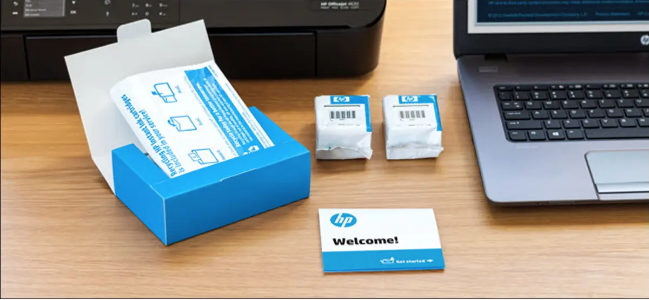
HP’s Ink Subscription Has DRM That Disables Your Printer Cartridges
HP have recently introduced this selling subscription consumables in Australia
The below article posted by Josh Hederikson (Catteriain) Sept 16th 2019 and refers to his experience with the USA subscription service.
Printer ink is expensive. HP promises to help with a subscription service for ink, complete with cartridges that stop working when you cancel your subscription. But HP makes you count pages, and I’d rather print as much as I want.
HP’s Ink Subscription Service Sounded Like a Good Deal
In mid-2016 I was running into a recurring issue. I was always out of printer ink, and new cartridges were expensive. Laser printers can be cheaper for many people, but my household does print as many color photos as it does text documents, which means they’re not a good choice for me. So I purchased a new inkjet printer on the promise of HP’s easy-to-use ink subscription service. For a low cost, I would always have all the ink I needed—as long as I kept to a page limit, that is.
Now, years later, I’ve realized there was one other price of admission. The ink they’ve sent me isn’t mine; it’s theirs. And if I cancel the subscription when the billing cycle ends, the printer won’t use the ink anymore, and HP requires I send it back to them. I have to buy new ink to replace the ink that is already in my house.
HP Instant Ink is Easy to Use, and Inexpensive Up Front
Note- USA pricing
HP
As long as your HP internet-connected printer supports it, HP Instant Ink is very easy to set up. You go to their enrollment site, sign up for an account, and connect your printer. Once you finish signing up, HP will send you ink cartridges; billing begins when you install them in your printer. HP requires you to choose a plan that limits the pages you can print each month. HP doesn’t care what you print, just the pages needed for the job. A page with a single word on it and a full-colour photo page are both the same as far as the plan is concerned. If you don’t use all your allotted pages in the month, the extra pages roll-over and you can use them next month.
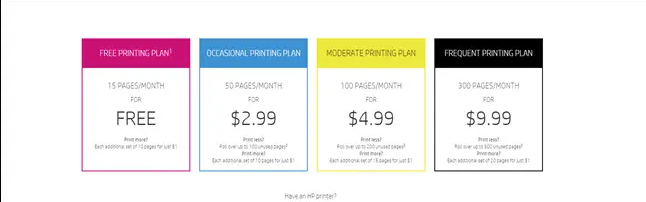
How much you pay depends on the number of pages you can print and roll-over. HP offers a free plan with 15 pages per month, but no roll-over. If you go over the limit, you pay $1 for each set of 10 pages you print (meaning if you print five pages, you still pay $1). The first paid tier is $2.99 a month for 50 pages, and the ability to roll-over 100 pages from previous months. Additional pages are still $1 for a set of 10 pages. The next step up is $3.99 a month, with 100 pages per month and 200 roll-over pages. You’ll pay $1 for sets of 15 pages if you go over at this level. The top tier is $9.99 a month at 300 pages, and 600 roll-over pages. You’ll pay $1 per 20-page set if you go over this tier limit.
The Ink Stops Working if You Cancel
Here’s the kicker: if you cancel, your ink stops working. You read that right; as soon as your billing cycle ends the printer will not accept the ink anymore, and you’re required to send it back to HP. At least they provide the postage and packaging for that purpose.
HP doesn’t spell out any consequences in their terms of service for failure to send the ink back, so we checked with a support agent. They helpfully explained that nothing happens if you fail to send them back, but the cartridges would stop working. You’ll have to buy more ink on your own if you want to keep printing. HP ships specially marked ink as part of this process, and your printer recognizes that it is intended for Instant Ink subscribers only. It’s essentially DRM, but instead of locking down a digital movie or book, this locks down a physical product: the ink in your printer.
Instant Ink requires an internet connection for your printer. HP explains that they monitor your ink levels, so they know when to send you more, but as described in their Terms of Service the other reason for this is to remotely disable your ink cartridges if you cancel, or if there are any issues with your payment.
Those terms also give HP permission to “remotely change, patch, update, or otherwise modify your printer’s software, firmware or programming, without notice to you” to provide the Instant Ink service. HP also says it will remotely monitor your printer’s page count and ink status, as well as the “types of documents printed (e.g., Word, PowerPoint, pdf, jpeg, etc.).”
You’ll Save Money if You Print Mostly Colour
If you’re asking whether HP instant ink is a good deal, the answer is a resounding: it depends.
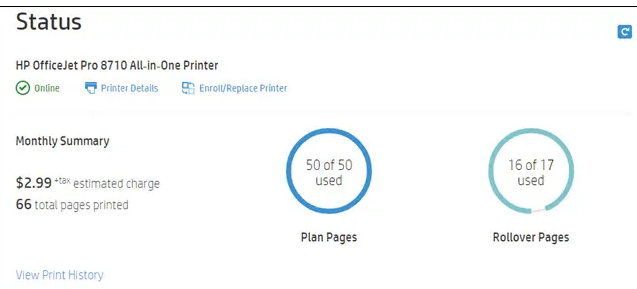
In a little over two and a half years, I’ve printed 1517 pages. Many of these are full-color prints for photos, labels, and so on. But this has also included a mix of regular black and white documents, too. Thanks to roll-over pages I have avoided extra charges every month except four. Three out of those four months, I printed less than ten over the limit pages; one month I printed an additional 116 pages. So while most months I paid $3 to $4, one month I paid $16 for my excessive page prints
Overall since I joined HP ink I’ve spent just under $110. Comparing that to the cost of ink, I’m doing well. Since I signed up for the program, HP shipped one black cartridge and two of each color cartridges. I’m currently sitting at less than 25% in the existing black cartridge and about 50% of the color cartridges. The exact ink HP sends isn’t for sale, but they describe it as ‘extra high capacity‘ in their FAQ. The closest equivalent I can find for my printer is High Yield cartridges. They sell a full pack (black, cyan, magenta, and yellow) for $110, and a color pack for $66. So side by side, I’ve received $176 worth of ink and only paid $110. You could try to save money with third-party cartridges, but HP and other printer manufacturers have a long history of fighting their use. And HP’s legal text include lines that explain using a third-party cartridge will void the warranty.
While the pricing math is working out well for me, it may not work as well for you. HP only sends ink when you need it, so if you print far less or far more than I do, or you print just text documents, then the math changes. It’s easy to get trapped into overages, and while you can step up or down in your plan to avoid that, you have to pay attention to know when it’s necessary.
The only way to know how many pages you’ve printed is to log into HP’s website and check first. If you forget to do that and don’t keep track, you can go way over your plan. HP won’t automatically move you up to the next level either. That’s what happened to me in November: I went 100 pages over my limit and didn’t notice until the bill arrived. By that point, it was too late to step up to the next level, which would have saved me money.
Worse yet, if you need to replace your printer, you have to do it through HP, or you will lose your roll-over pages and plans. Every time I print, the first page is a blurry mess (which counts against my limit). But, unless I want to lose the ink I paid for, I have to use the “Replace a Printer” process on HP’s website.
I’m Tired of Being Afraid to Print
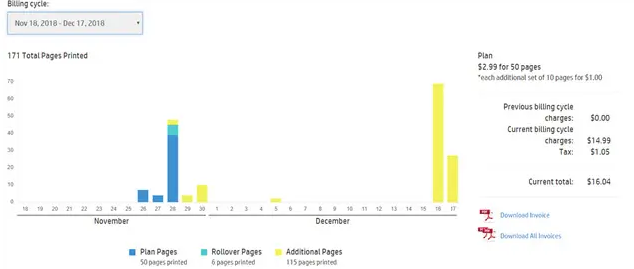
HP Instant Ink is designed and billed as a ‘set it and forget it’ service, and while that does add to the convenience factor of everything, it’s also the trap. And it’s why I want to quit.
According to the math, I’m the type of person who can benefit the most from HP’s Instant Ink program. I’m getting more ink for less money than if I had gone a traditional route. But there’s a secondary cost. I’m left afraid to use my printer for the one reason I have it—printing. It’s a strange proposition that every time I go to print, I now feel the need first to check if I have enough pages left in my plan. It’s like asking HP for permission to use my printer. And if I don’t ask nicely enough, I’ll pay extra or, worse, they’ll take my ink away. And it’s not actually my ink: HP’s instant ink recycling page spell this out clearly (emphasis mine):
HP Instant Ink cartridges are the property of HP and must be returned when empty, or when your service is cancelled
I can’t think of anything else in my house that works this way. My couches don’t have an allotment for sitting time, and I don’t need to continually pay the furniture store a fee for the right to use their cushions. I don’t fear that if I fail to pay my cushion subscription the store will take them away, leaving me with a cushionless couch.
My laundry machine requires detergent, but I’m not limited in the number of loads I can wash in the month. I don’t pay extra for doing the laundry more often when it happens to be rainy and muddy, and beyond keeping my detergent stocked, I’ve never felt need to check if it’s okay to wash my clothes. If I decide I don’t like the brand of detergent I’m using today, I’m not required to send it back just because I’d like to change.
But that how it feels with my printer. I don’t want to stop what I’m doing, go to a website, and check if I’m allowed to print. I want my printer to be mine and controlled by me. All I have to do is convince myself that freedom is worth the cost of all new ink.
Fuji Xerox taken to court over alleged unfair contract terms
Automatic renewal terms, excessive exit fees and unilateral price increases are just a few of the unfair terms – Julia Talevski (ARN)22 October, 2020
Automatic renewal terms, excessive exit fees and unilateral price increases are just a few of the 31 different ‘unfair’ terms the Australian Competition and Consumer Commission (ACCC) has picked up on among its allegations involving nine types of Fuji Xerox’s standard form small business contracts it claims contain 173 unfair contract terms.
“We have received a number of complaints from small businesses alleging that some of the terms in Fuji’s contracts have caused them significant financial harm,” ACCC deputy chair Mick Keogh said.
“Some of the unilateral variation terms allow Fuji to modify contracts by creating new rights and obligations, including increasing prices, without notifying its customers and without giving them any corresponding right to negotiate or reject.”
According to the watchdog, the terms were used in contracts between Fuji and its small business customers for the supply of printing goods, services and technical assistance since at least October 2018.
The ACCC will argue that the unfair terms in these contracts cause a significant imbalance in the rights and obligations of Fuji and the small businesses they contract with,” he said.
The ACCC is seeking declarations that the terms in the existing contracts between Fuji and its small business customers are unfair and therefore void, and an injunction to prevent Fuji from relying on these terms in its current contracts or entering into future contracts that contain those terms.
The ACCC is also seeking an order for a corrective notice, a compliance program and costs.
Keogh sounded a warning this court action should prompt all other traders in the printing support industry to review their standard form contracts and make any necessary changes to remove unfair contract terms.
Fuji Xerox (FXA) said it had been cooperating with the ACCC’s investigation and had proposed several contract changes to address the contract concerns.
“In that context, FXA is disappointed that the ACCC has decided to commence proceedings, which FXA intends to defend,” FXA said. “FXA is sending correspondence to all its customers about how this impacts them and next steps.”
HP has given assurances to the United Kingdom’s Advertising Standards Authority that they will remove the claims from their future advertising.
In its email, HP claimed that “over 1 in 5 problems caused by non-HP cartridges can cause damage to the printer” and that “49% of imitation cartridges failed during use or right out of the box”, compared to HP original supplies.
With the complaint UKCRA asked the ASA “to request HP to cease and desist from any further campaigns of this sort” stating that the advertisement includes “many statements that are discriminatory” and tries to “to discredit third party toner and inkjet printer cartridges other than their own in their printers.”
UKCRA added at the time: “Printer cartridges that are remanufactured (re-used) are not only more environmentally friendly they are more sustainable than recycling.”
The ASA has now received an answer from HP, who have assured the authority that they will remove the claims from their future advertising.
A check of the HP site reveals that the email in question either does not exist anymore on the server, or it may have been moved or deleted.
ASA said in its message to UKCRA: “We consider that this will resolve the complaint without referring the matter to the ASA Council, and will consequently be closing our file.
“In a formal investigation, if the ASA Council decides that an ad is in breach of the Code, the advertisers are told to withdraw or amend it. Because HP has already assured us that the advertising you complained about will be amended, we consider there is little to be gained from continuing with a formal investigation, which would achieve that same outcome.”
Although ASA is not publishing full details of the UKCRA complaint on its website, www.asa.org.uk, basic information including the advertisers’ name and where the ad appeared will appear though on 9 September 2020.
We note as we publish this article HP in Australia have not removed from local site
HP at it again.. read on
Florida man might just stick it to HP for injecting sneaky DRM update into his printers that rejected non-HP ink
World crosses fingers
By Kieren McCarthy in San Francisco 28 Apr 2020 at 23:59
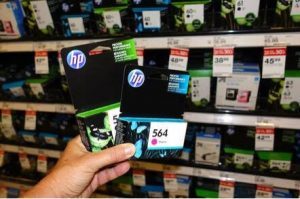
One man’s effort to sue HP Inc for preventing his printers from working and forcing him to use its own branded, and more expensive, ink cartridges can move forward in California.
Florida man John Parziale was furious when he discovered in April last year that HP had automatically updated his two printers so they would no longer accept ink cartridges from third-party vendors – cartridges he had already bought and installed.
That month, HP emitted a remote firmware update, without alerting users, that changed the communication protocol between a printer’s chipset and the electronics in its inkjet cartridges so that only HP-branded kit was accepted. The result was that Parziale’s printer would no longer work with his third-party ink. He saw a series of error messages that said he needed to replace empty cartridges and that there was a “cartridge problem.”
Parziale sued the IT titan in its home state of California, arguing he would never have bought the HP printers if he knew they would only work with HP-branded ink cartridges. At the time, the cartridges he bought to go with the machine did in fact work and were printing merrily right up to the point the DRM-style update was sent.
HP asks customers to “please use genuine HP ink cartridges for best results,” though Parziale decided he would forego the “best results” to save money. He bought nine cartridges, none of which work any longer.
It’s a situation that millions of people worldwide can sympathize with: a full set of inkjet cartridges often cost over $100, making the ink more expensive per drop than vintage champagne, whereas refilled or third-party cartridges often cost a third of that – and that’s a significant saving.
But feeling ripped off and beating a tech giant in court are two different things, as Parziale found out this month [PDF] when federal district judge Edward Davila threw out most of his claims against HP. Four of five allegations he had made were under America’s Computer Fraud and Abuse Act (CFAA), accusing HP of abusing its “authorized access” to his devices. These were rejected because, the judge noted, he had granted HP remote access to his printer.
Intention
The one charge left, which Parziale will now need to prove, is that HP had “intentionally caused damage by altering his printers’ functionality in a way that devalued the printers.” In other words, by forcing his printers to only accept HP cartridges through the firmware update, the value of his printer had fallen.
Parziale also took aim at the entire business model that HP and other printer manufacturers use to turn a profit: cheap printers and expensive ink. HP had, it was claimed, “harmed competition and raised the cost of owning printers… by forcing existing customers who have sunk a high upfront cost in a printer and now are restricted to continuing to use that printer and HP brand ink cartridges at an artificially elevated variable cost.”He argued that HP had “substantially decreased the value of the products, after the point of sale, by installing permanent firmware updates onto the units that rendered the units less functional and less valuable than they were prior to that time.”
In addition, Parziale alleged HP broke Florida’s Deceptive and Unfair Trade Practices Act by making him believe non-HP cartridges would in fact work. But the judge argued that he hadn’t been misled because at the time he bought the printers, an OfficeJet Pro 7740s, they did in fact work with other cartridges.
HP’s support page also includes statements that non-HP cartridges may not work, and that “HP cannot guarantee the quality or reliability of non-HP cartridges,” which the judge said Parziale should have taken into account.
Judge Davila then made the somewhat extraordinary assertion that “in light of this express warning, no reasonable customer would understand HP’s statement to mean that the printer would remain compatible with non-HP cartridges.”
Parziale bought his two machines in September 2017 and June 2018, 19 and ten months before the updates borked his gear, respectively, which doesn’t sound like an unreasonable length of time to expect the printer to work as expected. The judge said he could revisit this claim in an amended complaint – he should take a look at what happened when the exact same thing that happened with HP in Australia in 2018.
Just think of the experience
HP has a wide range of explanations for why it continues to push updates that knacker competitors’ cartridges, including to “protect the quality of the customer experience, maintain the integrity of our printing systems, and protect our intellectual property.” The judge was careful to note these are “alleged benefits,” though said Parziale had failed “to allege that his injury outweighs any countervailing benefit to consumers.”
What are those benefits? Well, HP has argued it spends a billion dollars a year on “ink research and development,” and that the ink “must be formulated to withstand heating to 300 degrees, vaporization, and being squirted at 30 miles per hour, at a rate of 36,000 drops per second, through a nozzle one third the size of a human hair. After all that it must dry almost instantly on the paper.”
Which is very impressive. Except that quote came from Thom Brown, a marketing manager at HP, in an opinion article that is now a decade old, 2010 in fact, when HP was facing the exact same consumer fury over prices. Can HP ink now withstand 400 degrees? Or be squirted at 60 miles per hour? Is the rate now 63,000 drops per second?
At some point, HP’s boasts of constant innovation have to be checked against reality. Although, because the judge dismissed Parziale’s claim, HP is unlikely to be scrutinized on this point in this particular lawsuit.
As to what Florida Printer Man did manage to successfully argue he could challenge HP on: he said he was at risk of harm from another firmware update that may suddenly and unexpectedly impact another part of his printer, and the judge accepted that as an argument and acknowledged, in that case, he would be allowed to request an injunction.
And as mentioned above, the judge also, crucially, accepted the fact his cartridges suddenly stopped working could be seen as “damage” to his printers.
Groundhog Day
Of course, none of this will come as news to anyone that regularly purchases printers. HP in particular has been playing this game for years, with periodic aggressive intervention followed by backing off when people complain and sue it.
In March 2016 and September 2017, HP did the exact same thing, pushing out updates that changed the communication protocol between cartridges and printers to break third-party cartridges. The EFF got involved, and a class-action lawsuit was launched that reached the same point where Parziale’s is now: allowed to move forward but with some claims pulled out.
What happened? HP settled. And it agreed not to install its “dynamic security” in future, but only on those models that were a part of the lawsuit. It continued to push its DRM-like updates to its other printers. Newer printers were not included. Printers like the OfficeJet Pro 7740. ®
Inventor of Laser Printer – Dies at 81
Gary Starkweather, Inventor of the Laser Printer, Dies at 81
He originally received pushback from his employer, Xerox. But his invention eventually was to be found in every office and home.
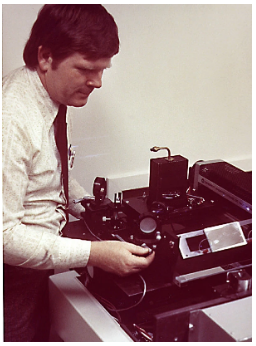
Gary Starkweather in the early 1970s with a version of the laser printer. He built the first working model in 1971 in less than nine months; by the 1990s, it was a staple of offices around the world.Credit…via Xerox PARC (Palo Alto Research Center)
Gary Starkweather, an engineer and inventor who designed the first laser printer, bringing the power of the printing press to almost anyone, died on Dec. 26 at a hospital in Orlando, Florida. He was 81.
His wife, Joyce, said the cause was leukemia.
Mr. Starkweather was working as a junior engineer in the offices of the Xerox Corporation in Rochester, N.Y., in 1964 — several years after the company had introduced the photocopier to American office buildings — when he began working on a version that could transmit information between two distant copiers, so that a person could scan a document in one place and send a copy to someone else in another.
He decided that this could best be done with the precision of a laser, another recent invention, which can use amplified light to transfer images onto paper. But then he had a better idea: Rather than sending grainy images of paper documents from place to place, what if he used the precision of a laser to print more refined images straight from a computer?
“What you have to do is not just look at the marble,” he said in in a tale at the University of South Florida in 2017. “You have to see the angel in the marble.”
Because his idea ventured away from the company’s core business, copiers, his boss hated it. At one point Mr. Starkweather was told that if he did not stop working on the project, his entire team would be laid off.
“If you have a good idea, you can bet someone else doesn’t think it’s good,” Mr. Starkweather would say in 1997 in a lecturer the Computer History Museum in Mountain View, Calif.
But he soon finagled a move to the company’s new research lab in Northern California, where a group of visionaries was developing what would become the most important digital technologies of the next three decades, including the personal computer as we know it today
Compatible vs Genuine
Will compatible Toner & Ink cartridges work as well as the genuine?
Yes…. Compatible Toner & Ink manufacturers have developed their own solutions that work just as well as genuine product – ie: Original Equipment Manufacturer (OEM).
They have had the opportunity to reverse engineer the OEM product allowing them to develop outstanding ink and toner solutions to ensure the quality of the finished printed page is of the same quality you are familiar with.
People have embraced non genuine ink & toner cartridges.
Why? Because they come with a guarantee to deliver the same quality as the OEM products, but at a fraction of the price.
Don’t be bullied by OEM printer manufacturers
If you do you will lose the opportunity to make significant savings. In today’s competitive marketplace, printer manufacturers often use scare tactics to maintain their unrealistic profit margins, such as claiming the use of non genuine toner and inkjet cartridges will void manufacturers warranty.
This is simply not true, just like vehicle manufacturers cannot cancel your warranty because your chose a competitor to service your vehicle, you have the right of choice for your home or office equipment.
Schedule 2 Part 3-2 of the Competition & Consumer Act 2010
“If a part is ‘non- genuine’ but is interchangeable with a ‘genuine-part’ then the non-genuine part would still be seen as fit for purpose, and therefore would therefore not void any manufacturers guarantee/warranty. Such warranty can only be voided when the cartridge itself is faulty and causes damage to the printer.”
With the latest technology and a superior quality of print solutions, colour and mono copier toners have been tried and proven worldwide.
Why do compatibles sometimes look different, yet work the same?
Patents protect most OEM printers and cartridges, so manufacturers of compatible cartridges may be required to redesign their products to avoid intellectual property infringement.
This allows the compatible manufacturers to make any improvements necessary to the original design in order to deliver optimal cartridge performance. So, although compatibles may look different to the original product the quality and suitability is assured.
These cartridges are brand new and not re-manufactured.
If a cartridge shell cannot be redesigned, due to patent restrictions, the original cartridge may be refilled, with any used component replaced.
In summary
The choice is yours – if you are looking for toner or ink that is considerably more affordable than the Original equipment manufacturer – then give the compatibles a try
get savvy and calculate the true cost per print – simply take the cost and divide by the yield
example
Brother TN2350 toner cartridge – Genuine $134.95 average yield 2,600 pages . = .0519 cost per print
Brother Tn2350 toner cartridge – Compatible $57.95 average yield 2,600 pages =.0222 cost per print
At CartridgeMate we provide full warranty as well as technical support for all genuine and non- genuine print toner manufacturers
Does your HP printer not let you use other cartridges? You could be compensated.
Below is email received from the ACCC on 4th May 2018 with respect to Hewlett Packard admitting that it designed technology to prevent non genuine cartridges being used – and in many cases, customers received a error message which indicated the cartridge was damaged . – when this was not the case
We sell Genuine as well as Non- Genuine cartridges for most printer brands – as we believe that the customer should have a choice.
Some OEM ( Original EquipManufacturers) should you have a issue, will immediately state that because you are using a non genuine cartridge that the warranty is void. This is untrue – they have to prove that the cartridge damaged the printer. This simply appears to be a way for OEM to keep customers purchasing their product and limiting the end users choice.

If you purchased certain models of HP printers and weren’t informed that non-HP ink cartridges might be incompatible – you could be eligible for compensation.
HP has given the ACCC a court-enforceable undertaking after it admitted to not disclosing to its customers that certain printers, or their firmware updates, included technology that was designed to prevent non-HP ink cartridges from being used. This resulted in non-HP ink cartridges being rejected, and in many cases, customers receiving an error message which indicated that the cartridge was damaged, when this was not the case.
HP will compensate $50 to its customers who were prevented from using a non-HP cartridge. If you believe your business is entitled to claim compensation, visit the HP website.
Find out more, including the printer models affected, in our media release.
Lesson for businesses: This matter serves as a timely reminder to businesses that you must disclose all important information about your products, including if there are any restrictions on the use of non-genuine parts. If businesses fail to provide relevant information to consumers about their products they could be breaching the Australian Consumer Law by engaging in false, misleading or deceptive conduct. You can find out more about advertising and promoting your business in our recently updated Small business & the Competition and Consumer Act guide.
Kind regards,
Small Business team
Australian Competition and Consumer Commission (ACCC)
Safely Storing Ink Cartridges For Maximum Performance
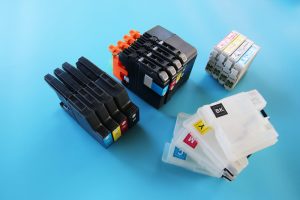
There’s nothing worse than coming to print and finding that the ink cartridges you purchased a while ago no longer work.
Storing ink cartridges properly can lengthen their life span dramatically. With just a few tips on how to store your ink cartridges, you can make sure that your ink lasts until required.
1.) Store in Upright Position Whether it is in its box or loose, make sure to stand the ink cartridge in an upright position at all times. We recommend keeping cartridges with the print head facing up, especially cartridges that contain more than one colour. Storing cartridges lying down could cause inks to mix.
2.) Keep in Cool Conditions Store all ink cartridges in a cool ventilated place (15° to 35° Degrees) and do not expose to temperatures over room temperature. Ink could start to foam up creating bubbles which can cause leaks or air locks.
3.) Keep the Cartridge Sealed This keeps the ink in its original state keeping the print head moist. No air escapes or gets caught in the cartridge, ensuring to keep any chemical reactions kept to a minimum.
4.) Seal the Cartridge Bag Moisture is important when storing ink cartridges, so seal the bag with the cartridge inside. If the bag has been opened, try sealing the bag with sticky tape.
4.) Keep in a Dark Room Keeping the cartridges in a dark room stops the ink quality being degraded by direct sunlight. Ink cartridges that have already been opened can be stored for up to 6 months if kept in the right conditions, whilst new and sealed cartridges can last for 2 years.
If cartridges have been stored for a while and you wish to print, do not just insert the cartridge into the printer and begin printing. Doing this could damage your printer and waste your ink.
Just follow these quick steps:
- Unseal the cartridge, check for any ink spills and wipe any dust and spills
- Check the print head is moist by wiping tissue paper across the print head.
- Make sure the cartridge contact terminals appear as they should be.
- Insert into printer and print a test page.
How To Store Toner Cartridges
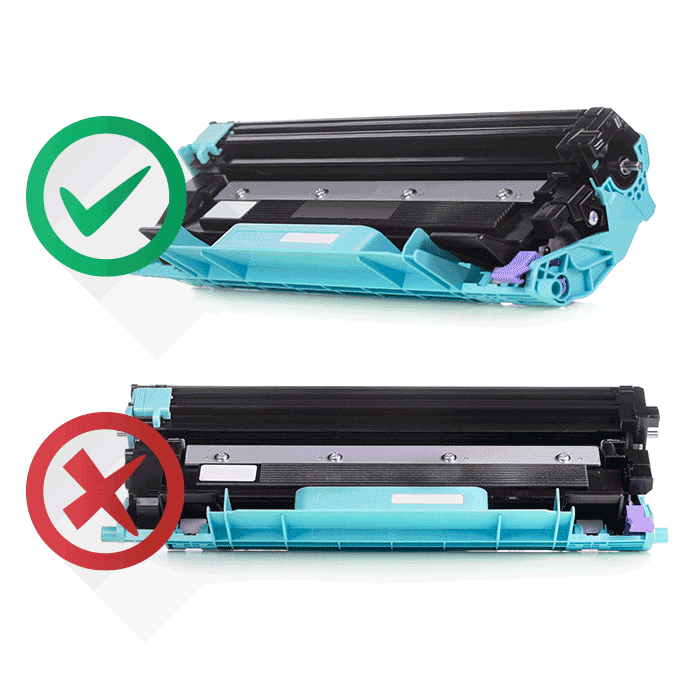
Toner cartridges contain components that are sensitive to light, temperature and humidity.
These recommendations should help ensure optimal performance, highest quality, and longest life from your Original or new compatible cartridge.
Store cartridge in the same environment in which the printer will be used. This should be in controlled temperature and humidity conditions.
The Original or compatible cartridge should remain in its original and unopened package until installation – if original packaging is not available, cover the top opening of the cartridge with paper and store in a dark cabinet.
Opening the cartridge package prior to use dramatically shortens its useful shelf and operating life. Do not store on the floor. If the toner cartridge is removed from the printer, follow the instructions below to store the toner cartridge properly.
- Store the cartridge inside the protective original packaging.
- Store lying flat (not standing on end) with the same side facing up as if it were installed in the machine.
- Do not store consumables in any of the following conditions:
o Temperature greater than 40°C.
o Humidity range less than 20% or greater than 80%.
o An environment with extreme changes in humidity or temperature.
o Direct sunlight or room light.
o Dusty places.
o A car for a long period of time.
o An environment where corrosive gases are present.
o An environment with salty air.
Handling Instructions
- Do not touch the surface of the photoconductive drum in the cartridge.
- Do not expose the cartridge to unnecessary vibrations or shock.
- Never manually rotate the drum, especially in the reverse direction; this can cause internal damage and toner spillage.